Invite a New User
This document will describe how an admin can invite a new user to the TimeAi dashboard. This is for someone that does not have access to TimeAi at all. If the person has access to another dealership and they need to be added to a new dealership, use this Invite an Existing User document instead.
Otherwise, proceed with the following steps to invite a new user.
Ensure the selected dealership is the correct dealership that the new user should be added to.

Navigate to the Administration section on the TimeAi dashboard by clicking the Administration icon at the top right of the page.

Click the 'USER MANAGEMENT' tile. The 'Dealership Users' tab will be selected and will show the current users that have access to the selected dealership.

Click the blue 'INVITE USER' button to the top right of the user listing to launch the Invite User pop-up.

Invite User - Step 1
With the 'Invite User' pop-up displayed, fill in their name, email, and phone number.
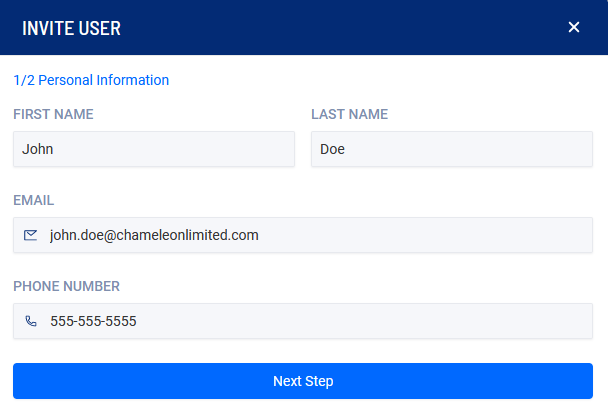
Click 'Next Step' to proceed to step 2.
Invite User - Step 2
Departments
The last step of the Invite User process starts with identifying which department they belong to. The department selections are:
Service
Parts
Corporate
The 'DMS-ID #' textbox should include the user's DMS ID that is was given to them to access the dealership's selected DMS. If the user is unaware of their DMS ID, please select 'Corporate' for the department and leave the 'DMS-ID #' field blank. A unique id within TimeAi will automatically be generated upon creation.
Job Titles
Next, select the user's appropriate job title from the selection.
Below is a set of tabs with the available Job Titles and the sections of TimeAi that the user will have access to.
- All Pages
- Service
- Service/Parts
- Service & Service AIS
- Parts & Parts AIS
- Dealer Principle
- General Manager
- Fixed OPS Director
- Office Manager
- Office - Other
- Service Director
- Parts Director
- Service Advisor
- Service Technician
- Detail Technician
- BDC Manager
- BDC Associate
- Consultant
- Warranty Admin
- Service Manager
- Asst. Service Manager
- Service - Other
- Parts Manager
- Asst. Parts Manager
- Parts Wholesale
- Parts - Other
If titles similar to 'Service Advisor' or 'Service Technician' are selected, the user will see data specific to their data and not at a dealership level. All other titles will show dealership level data.
Roles
Roles determine the data view (Single or Multi-Employee), multi-dealership access, and the ability to make changes within the administration section.
The list of roles below describe the access the new user will receive when selected.
| Role | Multi-Dealership? | Data View | Administration |
|---|---|---|---|
| Admin | No | Multi-Employee | Yes |
| Admin_Super | Yes | Multi-Employee | Yes |
| Manager | No | Multi-Employee | No |
| Manager_Super | Yes | Multi-Employee | No |
| Employee | Yes | Single-Employee | No |
| Consultant | Yes | Multi-Employee | No |
After all the desired selections have been made, click 'INVITE' to create the new user.
A completed example of step 2 is shown here.
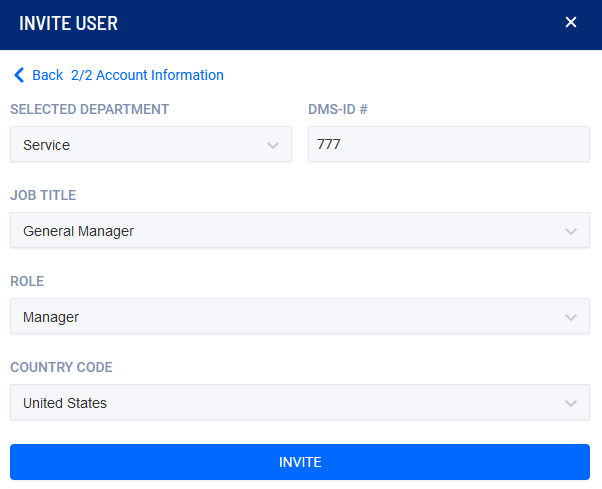
The user will receive an email with a temporary password and invite link to the TimeAi Dashboard.