Invite an Existing User
This document will describe how an admin can invite an existing user to another dealership within the same dealership group. If the user is not an existing user, please refer to the Invite a New User document.
Only an admin can invite an existing user to another dealership!
Otherwise, proceed with the following steps to invite an existing user to another dealership.
Ensure the selected dealership is the correct dealership that the existing user should be added to.

Navigate to the Administration section on the TimeAi dashboard by clicking the Administration icon at the top right of the page.

Click the 'USER MANAGEMENT' tile. The 'Dealership Users' tab will be selected and will show the current users that have access to the selected dealership.

Click the 'TimeAi Users' tab at the top of the user listing to show users that are already in TimeAi but do not have access to the selected dealership.

Look through the list of users and find the user that needs to be added to the selected dealership. Click the three dots in the last 'MANAGE' column on the right of the user's row. Then click 'Edit'.
Edit Employee
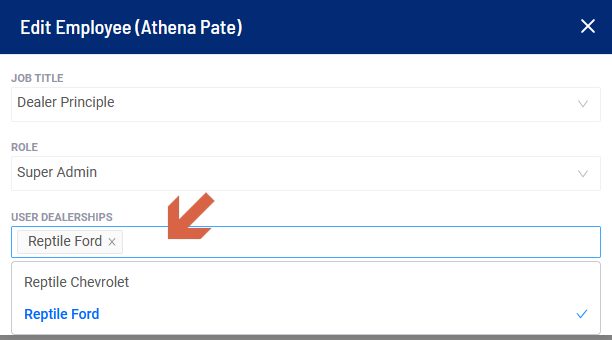
The 'Edit Employee' pop-up will appear. Click the white space to the right of the dealerships that the user has access to already. This will display a list of dealerships that the admin has access to and can add the user to. Click the desired dealership to add the user to. The dealership will be added to the list of dealerships that the user has access to. Click 'SAVE' to save the changes.
The user will be updated and will now have access to the selected dealership.