Map Technician to Shop
This document will describe how an admin can map a technician to a shop within TimeAi.
Only an admin can map a technician to a shop!
Ensure the selected dealership is the correct dealership that the technician mapping process is desired.

Navigate to the Administration section on the TimeAi dashboard by clicking the Administration icon at the top right of the page.

Click the 'TECHNICIAN ROLES' tile. The 'Technician Roles Mapping' page will be shown.

A list of technicians that have been active (assigned to a repair order) in the past six months will be in the list. Therefore, technicians that may not be with the dealership anymore will still show in the list if they were on a repair order in that six month window. For historical accuracy, those technicians should be/remain mapped.
Unmapped Technicians
Unmapped technicians will be shown at the top of the list. The technician's row will be shaded in red. By default, an unmapped technician's data will be shown in the Main Shop until the technician has been mapped. An example is shown below.

The unmapped technician can be mapped to the desired shop by simply clicking the checkbox under the shop's column.

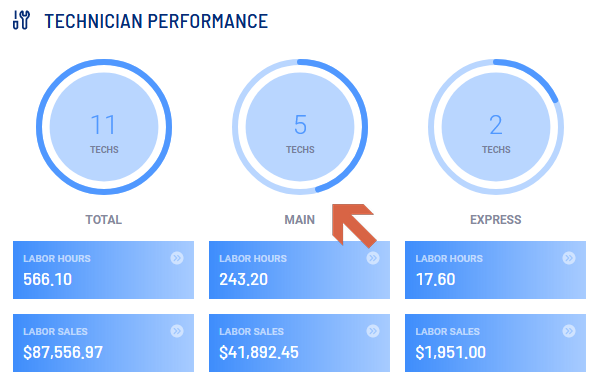
The technician's data will now be shown within the selected shop on the Service Dashboard.
Changing Shops
If a technician needs to be moved from one shop to another, simply click the checkbox of another shop for the technician and the technician will be moved. The Technician Performance data will be updated on the Service dashboard automatically. It may take a moment for the numbers to update as new calculations will be performed.