Add An Op Code to a Group
This document will describe how to add an op code to an op code group in the 'Tracked Op Codes' administration page in TimeAi.
Only an admin can track op codes!
First, navigate to the Op Codes page on the TimeAi dashboard.
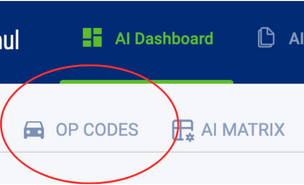
The 'Op Codes Tracking' page is within the Administration section. Click the 'Edit Tracked Op Codes' button to go to the 'Op Codes Tracking' page.
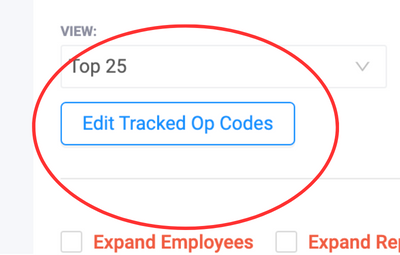
Op Codes Tracking Administration
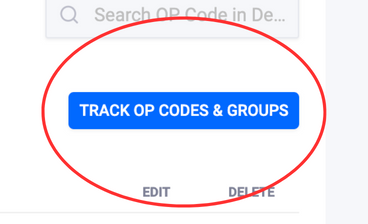
Click the blue 'Track Op Codes & Groups' button on the right. A new window will be shown to list existing tracked op codes, add more, or remove op codes tracked within a group.
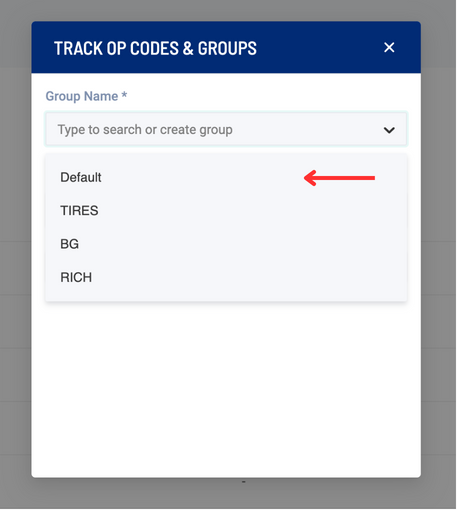
Select the Desired Op Code Group
Click the 'Group Name' drop-down list and select the desired op code group where the new Op Code will be tracked under.
Track Op Code Within an Op Code Group
Click the 'Select Op Code' to enter the op code name. Then click 'Create Op Code: OpCodeName' (will be displayed in green text). Click 'Save' to confirm the selection.
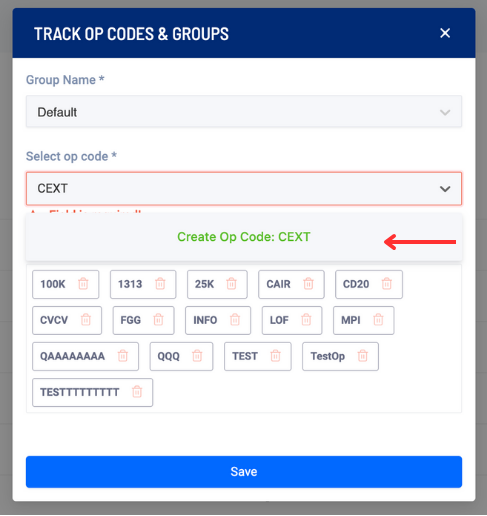
The desired op code will be shown within the selected group in the Tracked Op Codes section.